
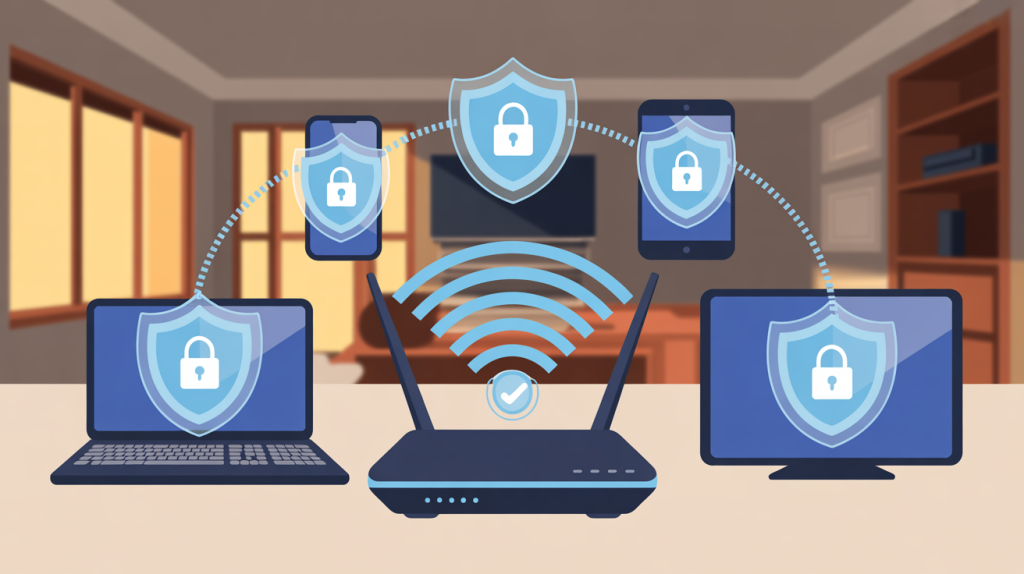
Router Settings That Matter for a Secure Home Wi-Fi
Home router security is one of the most important — and most ignored — aspects of cybersecurity at home. Your router controls how every device connects to the internet, yet many people never change its default settings. From a router security perspective, that’s risky.
If your router is misconfigured, attackers don’t need advanced skills. Weak passwords, outdated firmware, or insecure features can expose your entire home network. The good news is that improving router security doesn’t require technical expertise.
This guide walks you through the router security settings that matter most, explains what should be enabled or disabled, and shows how each step improves router security — even if this is your first time accessing router settings.
Step 1: Access Your Router Settings

To improve router security, you first need access to your router’s control panel.
How to do it:
- Connect to your home Wi-Fi network.
- Open a browser and enter your router’s IP address (commonly
192.168.1.1or192.168.0.1). - Log in using the admin credentials printed on the router or provided by your ISP.
If you’ve never logged in before, your router security is likely relying on default settings — and that’s where problems usually start.
Step 2: Change the Admin Username and Password (Must Activate)
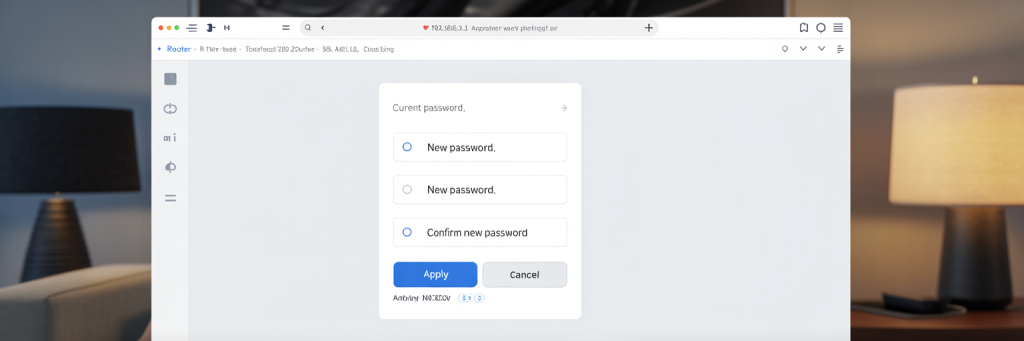
Changing admin credentials is foundational to router security.
Why it matters:
Default router usernames and passwords are publicly documented. Anyone who gains access to your network can attempt to log in and take control.
What to do:
- Change the admin username if possible.
- Set a strong, unique password (12–16 characters).
- Never reuse passwords from other accounts.
Home router security benefit:
Prevents unauthorized changes to your router security settings and protects every connected device.
Step 3: Rename Your Wi-Fi Network (SSID) and Set a Strong Password
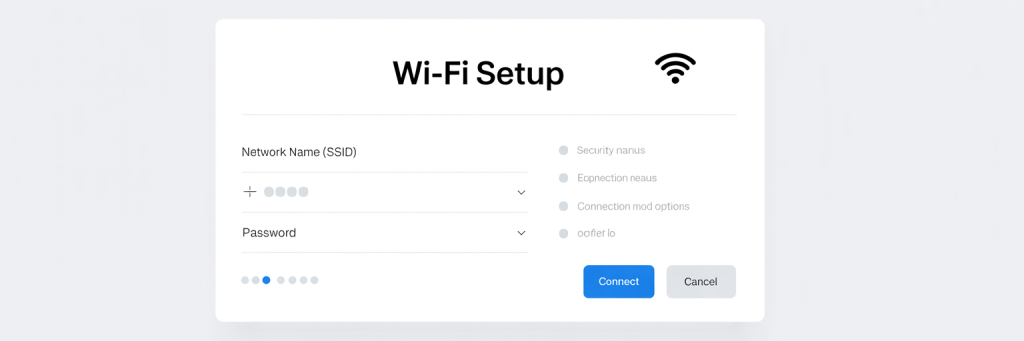
Default Wi-Fi names often reveal router brands or models, which weakens router security.
What to do:
- Rename the SSID to something neutral.
- Create a strong Wi-Fi password, different from the admin password.
Home router security benefit:
Reduces exposure to targeted attacks and improves secure home Wi-Fi access control.
Step 4: Enable the Strongest Wi-Fi Encryption Available (Must Activate)

Encryption is central to router security because it protects data moving across your network.
What to enable:
- WPA3-Personal if supported
- Otherwise WPA2/WPA3 mixed mode
- Avoid WEP or legacy WPA
Home router security benefit:
Prevents attackers from intercepting traffic and strengthens secure home Wi-Fi communication.
Step 5: Turn Off WPS (Should Be Disabled)
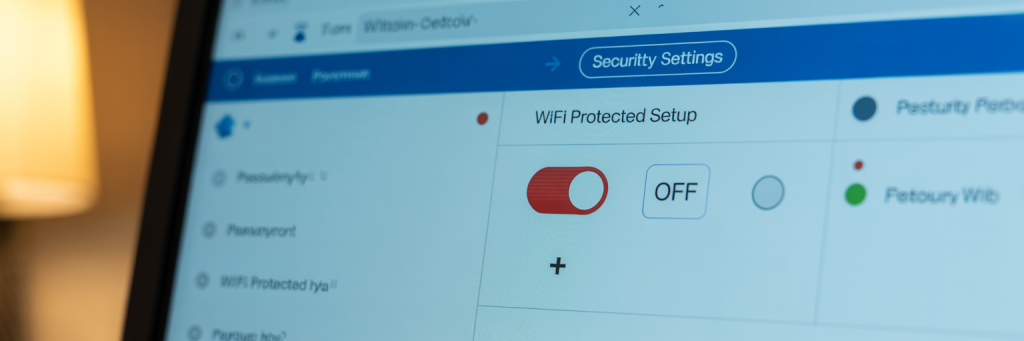
From a router security standpoint, WPS is one of the most dangerous convenience features.
Why disable it:
WPS PINs can be brute-forced, allowing attackers to join your network even with a strong password.
What to do:
- Locate WPS in wireless settings.
- Disable it completely.
Home router security benefit:
Eliminates a common attack vector. Disabling WPS is one of the simplest ways to improve router security settings.
Step 6: Disable Remote Management (Should Be Disabled)

Remote management allows access to your router from the internet — which weakens router security.
What to do:
- Disable remote or WAN management.
- Restrict access to local connections only.
Home router security benefit:
Reduces your attack surface and protects router security settings from external exposure.
Step 7: Enable the Built-In Firewall (Must Activate)

Most routers include a firewall, but it isn’t always enabled by default.
What to do:
- Enable the firewall or SPI protection.
- Keep default rules unless you know what you’re changing.
Home router security benefit:
Blocks unsolicited inbound traffic and strengthens your secure home Wi-Fi perimeter.
Step 8: Create a Guest Wi-Fi Network (Strongly Recommended)

Guest networks are an underrated router security feature.
What to do:
- Enable Guest Wi-Fi.
- Use a separate password.
- Block access to internal devices if possible.
Home router security benefit:
Isolates visitor and smart devices, preventing them from accessing sensitive systems.
Step 9: Keep Router Firmware Updated (Must Maintain)
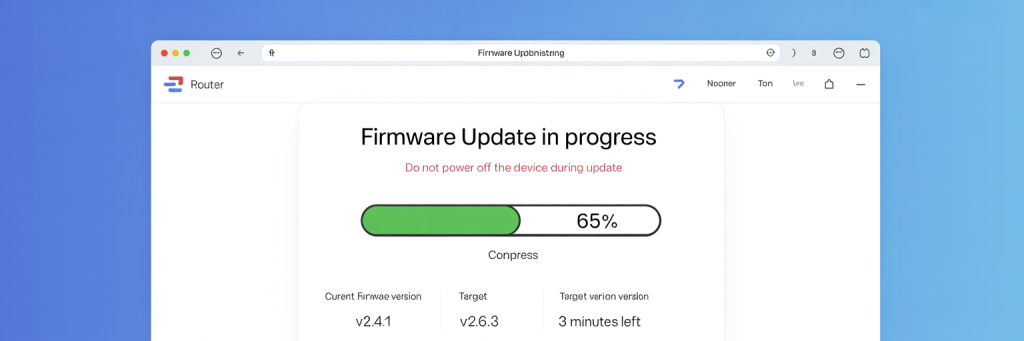
Outdated firmware is one of the most common router security failures.
What to do:
- Check for firmware updates.
- Enable automatic updates if supported.
- Replace routers that no longer receive updates.
Home router security benefit:
Fixes known vulnerabilities and maintains long-term router security.
Optional but Recommended: Disable UPnP

UPnP automatically opens ports, which can undermine router security.
What to do:
- Disable UPnP unless explicitly required.
Home router security benefit:
Prevents malware or compromised devices from exposing your network.
Final Thoughts
Router security isn’t about being paranoid — it’s about removing unnecessary risk. Most attacks succeed because routers are left on default or insecure settings.
If you focus on the essentials — strong credentials, modern encryption, disabling risky features, and keeping firmware updated — you significantly improve your secure home Wi-Fi posture.
Good router security protects everything downstream. Once your router is locked down, every connected device benefits.